Connect Your Camera to PlanIt Earth and Unlock Fully Automated Shooting
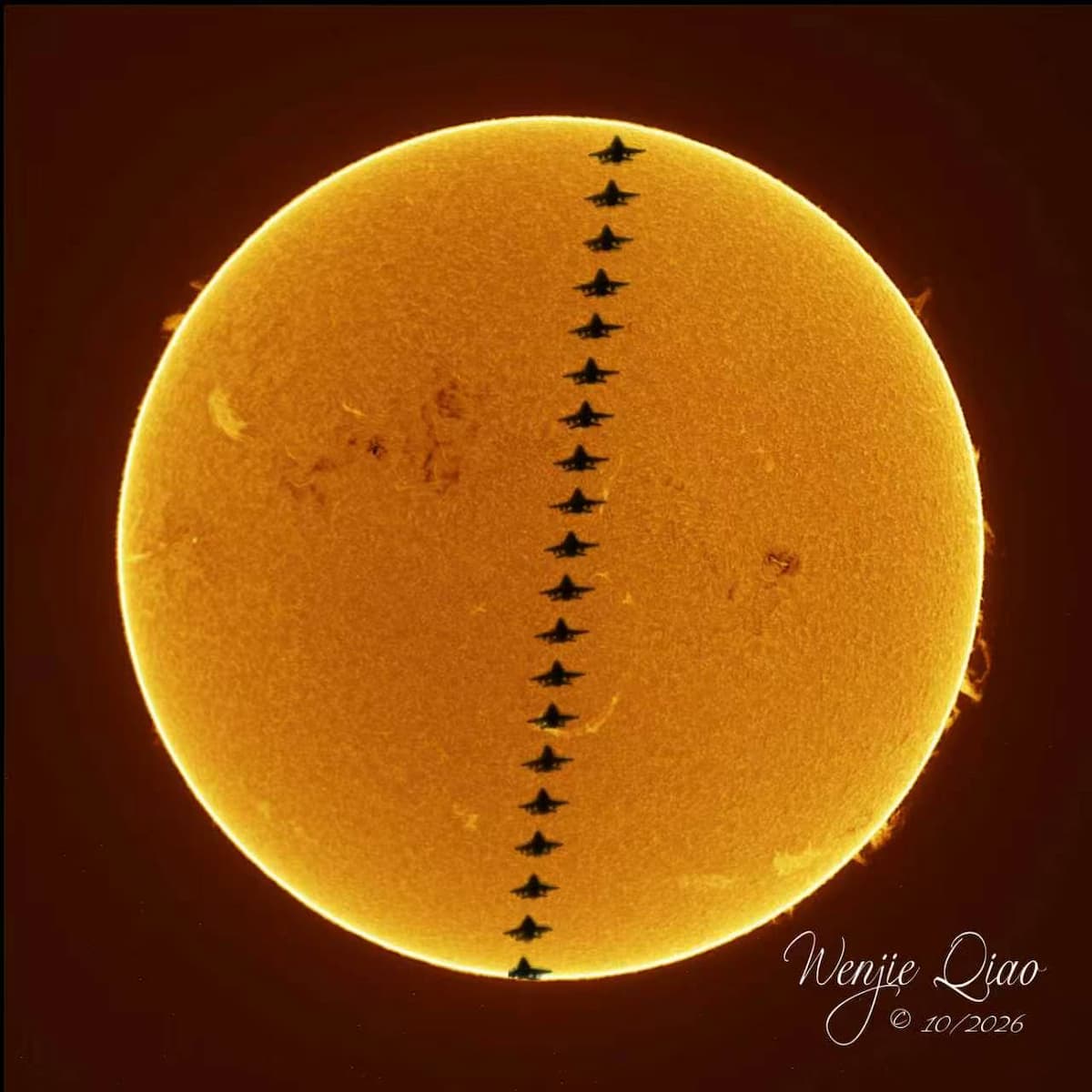
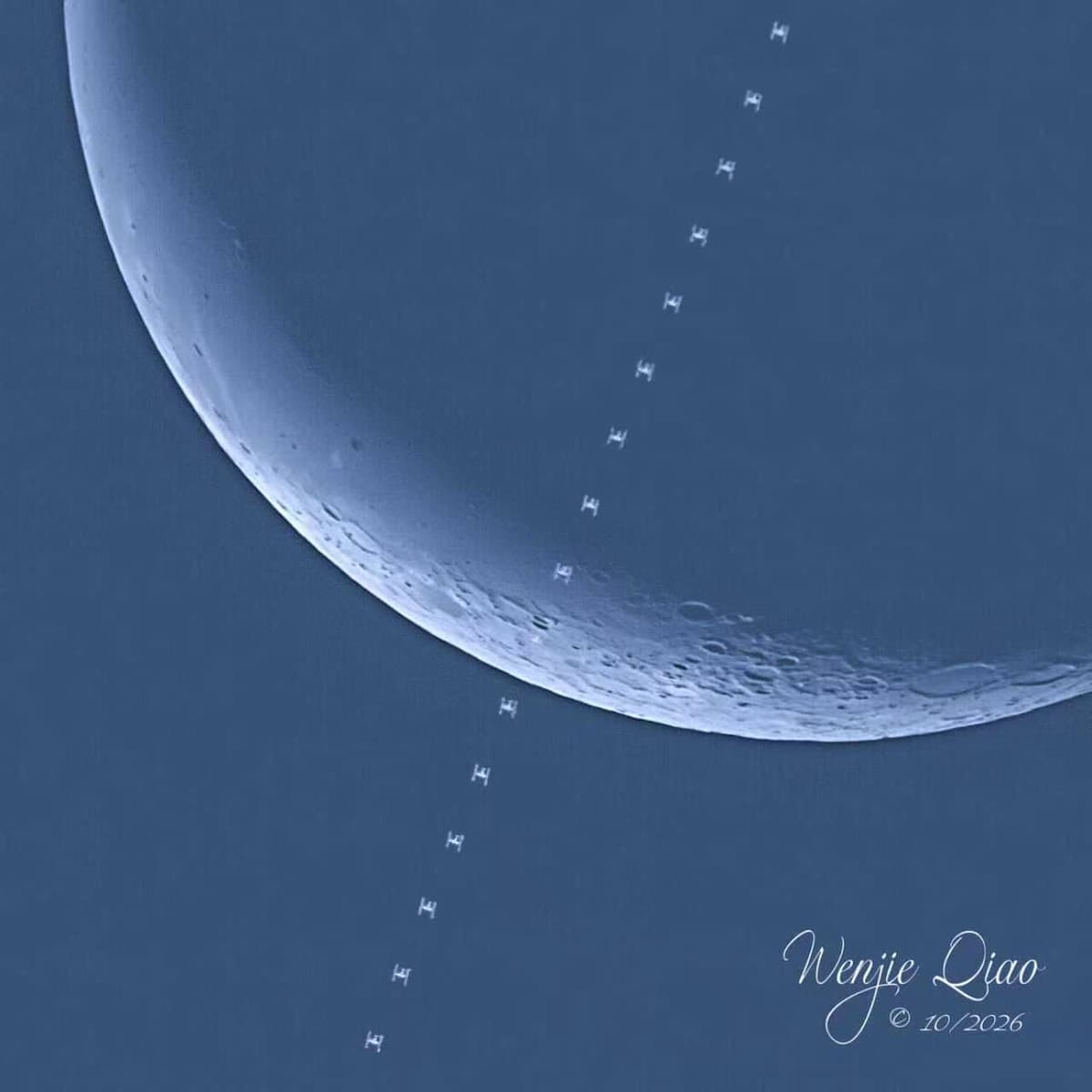
We need your support. Connect your camera to PlanIt Earth and give it a try. Whether the connection succeeds or fails, your attempts, scan results and camera reports help us support more equipment and bring fully automated shooting in PlanIt Earth closer to reality, one step at a time.
Both the familiar PlanIt Pro and today's PlanIt Earth are photography planning tools. They have helped you find a location, anticipate the light and wait for the Sun, Moon and stars to reach the positions you imagined. Now we want that companionship to extend to the moment you press the shutter, bringing PlanIt from preparation into shooting in the field. The first step is connecting it to your camera. When the location on your map, the time you have been waiting for and your camera's shutter come together, a carefully prepared plan can become the photograph in front of you. Less time switching between devices, more time to observe and enjoy the scene—that is the convenience we hope to bring every photographer as we expand what PlanIt can do.
Regular cameras: send a report when something goes wrong
For Canon, Nikon, Sony, Fujifilm, Panasonic, Olympus / OM and other regular cameras, start by trying a connection in PlanIt Earth. USB, Wi-Fi and Bluetooth availability, and the controls they provide, depend on the model and platform.
Use the app's camera report entry if the camera cannot connect at all, or if live view, exposure settings, shutter control or repeated shooting do not work as expected.
- Try connecting the camera. If it connects, use it until you encounter the problem.
- Find the camera report entry on the camera page, marked with a bug icon. After a failed connection, you can also return to the camera list to send a report.
- The app opens a feedback page with the diagnostic report attached. Describe the problem, review the contents and submit it.
Tell us what you did, what you expected and what actually happened. For example, “USB live view works, but changing ISO has no effect” is easier to investigate than “it doesn't work.” Relevant camera settings and screenshots can help too.
The report includes camera and connection information, app and device details, and diagnostic records from the session. Even after a failed connection, it preserves the attempted connection and error information where available.
We automatically scan and analyze incoming error reports, then improve the integration with the aim of resolving problems in the next version. Some issues need follow-up information or several rounds of testing; your report gives us a place to start.
Astronomy cameras: start with a scan
Astronomy cameras come in many models. Even within one brand, connection and image transfer behavior can differ. We cannot own every camera, but a scan from your equipment can show us how it works.
AstroCameraProbe is our companion tool for collecting that information. It is available for macOS and Windows from our website:
Download AstroCameraProbe and scan your astronomy camera →
- Connect your astronomy camera to a Mac or Windows computer.
- Open AstroCameraProbe and run a scan.
- Review the results and send them to the PlanIt team.
The computer is used here to gather information about how your camera works. If your camera is missing from the supported list, or is recognized but cannot produce an image, please run a scan. An incomplete scan or an error is useful feedback too—send the results you have.
A scan today could help your camera work in the next version. We use the results to add support and verify it; a successful scan does not mean every shooting function is already supported.
Choose a connection route
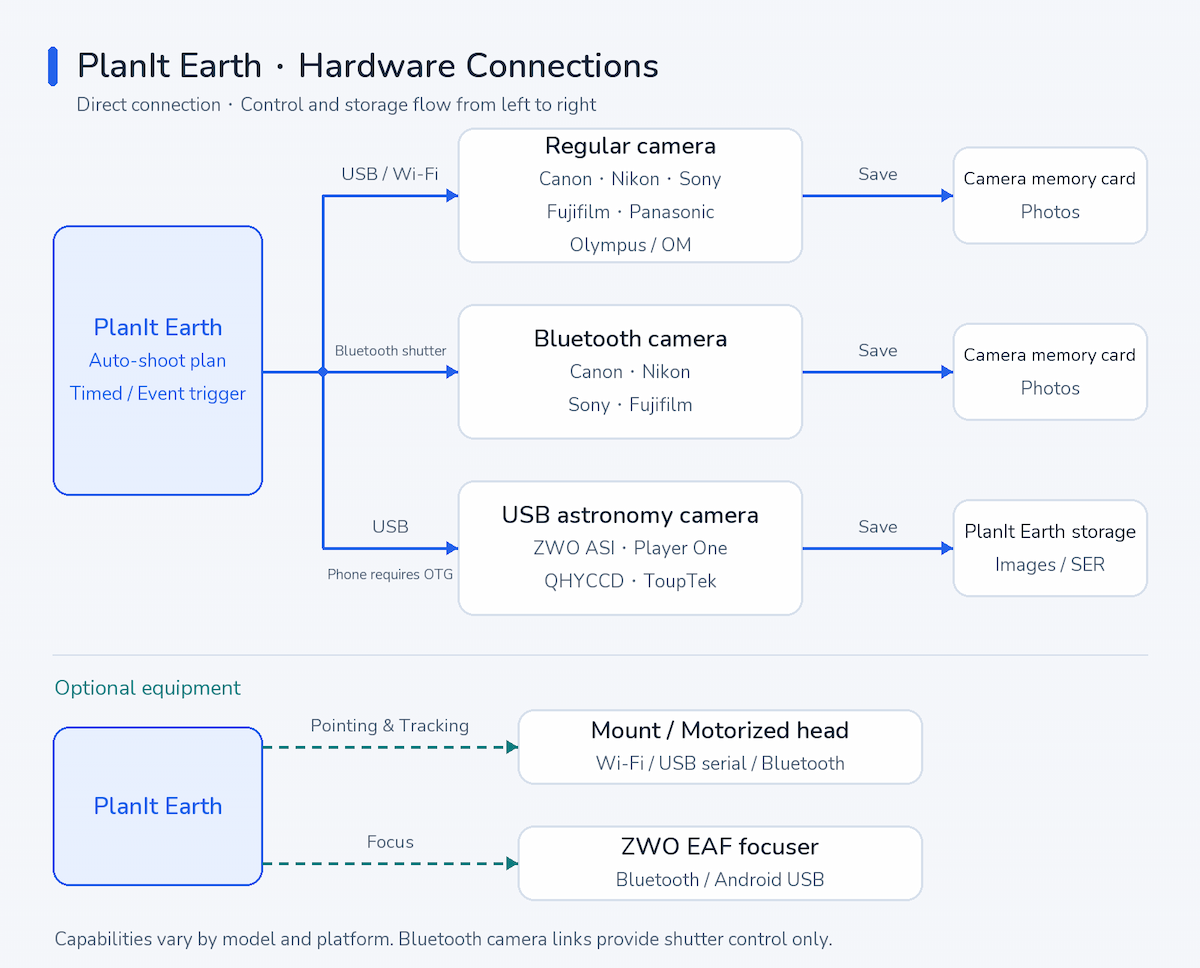
The diagram shows several routes. Regular cameras can use USB or Wi-Fi for control. Supported Bluetooth camera connections provide shutter control. USB astronomy cameras transfer images to the device running PlanIt Earth, where the app handles capture and storage. A phone needs USB OTG support and a setup that meets the camera's power requirements.
Mounts, motorized heads and focusers are optional additions; you can try them as needed. The brands in the diagram indicate integration directions, not verified support for every model, platform or feature. Check the support status in the app and try your own equipment. Some hardware features require PlanIt+; the app prompts you when entering them.
PlanIt Earth does not currently support direct USB astronomy-camera connections on iPhone or iPad. Use the SharpCap bridge route below. At the system level, iPads with an M-series chip support USBDriverKit, which provides a route for developing USB device drivers, but compatible drivers and app integration are still needed.
SharpCap bridge: use your existing computer setup
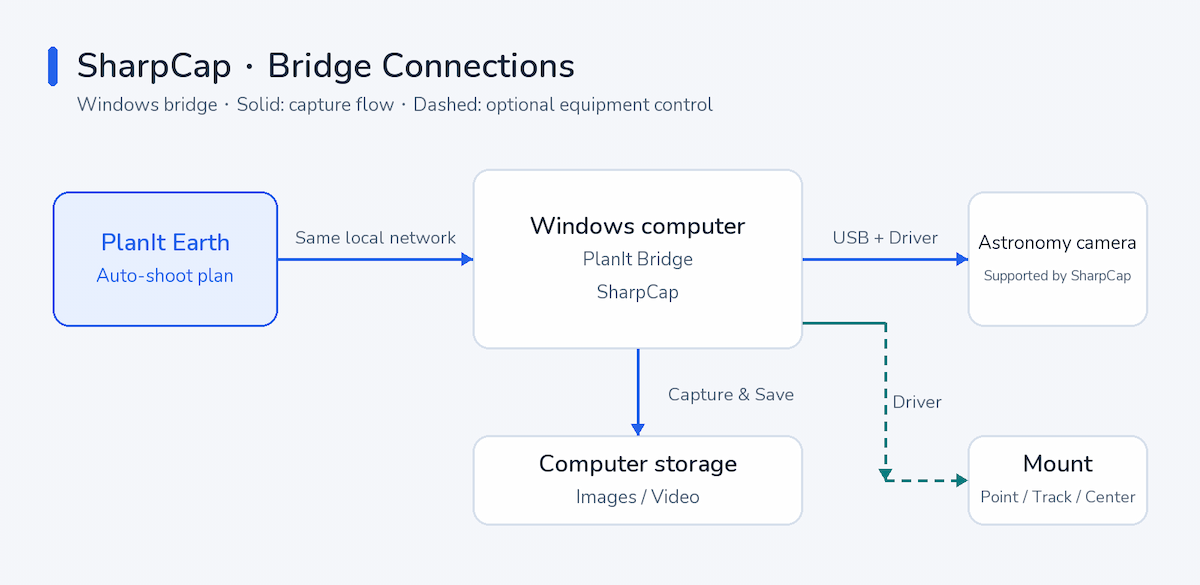
If you already use a Windows computer with SharpCap, keep your astronomy camera connected to it and run PlanIt Bridge on the computer. PlanIt Earth connects over the same local network, while SharpCap handles capture and storage. Mount control is also available where the equipment and drivers support it.
The bridge also offers several automation tools:
- Auto Exposure: Adjusts exposure according to the target's brightness, reducing repeated manual metering. It runs on the computer and continues after you leave the phone's preview page. It needs a measurable target and a camera that supports the relevant controls.
- Auto Detect: Transit mode detects dark moving objects crossing the Sun or Moon, such as aircraft, and triggers capture. A replay buffer can preserve frames from before detection.
- Auto Tracking / Centering: Uses a mount to center the Sun or Moon or keep it at your chosen composition position. It follows the Sun or Moon, rather than a passing aircraft. The camera must be on the same telescope carried by the controlled mount.
- Auto Focus: In SC mode, SharpCap runs autofocus on the computer using its previous focus settings and measurement method. First connect and configure the focuser in SharpCap. Enabling autofocus does not start a focus run; press the execution button to run it.
Auto Exposure, Auto Detect and image-based target tracking need the latest PlanIt bridge script and detection library (PlanIt.SharpCap.Detect.dll) in the same folder on the computer. Once computer-side detection is successfully armed, it can keep monitoring and triggering captures even if the phone disconnects. If the app reports that it has fallen back to phone-preview detection, keep the phone connected with its preview running.
Our goal: a smart camera remote for landscape photography and a lightweight astronomy control box for astrophotography
We want PlanIt Earth to gradually take on the role of a simple astronomy control box: when you don't want to bring a computer, connect your camera to a phone or another portable device and shoot directly. Camera control is the starting point, followed by pointing, tracking and focusing, so a shooting plan can become an actual sequence of captures.
Reliable hardware connections also lay the groundwork for more complete automation. Our goals include:
- Automated shooting that starts at a planned time or event and carries out a complete sequence.
- Time-lapse photography with intervals and exposure plans suited to changing conditions.
- Night-sky shooting that brings camera, tracking and focus control together.
- Day-to-night and night-to-day sequences, as well as moonrise and moonset during twilight, with exposure adjusted as the light changes.
These are ongoing goals. Features will develop across releases as equipment support improves. Reliable automation begins with real cameras that connect consistently, deliver images and respond to controls.
Start by connecting the camera you have. Every attempt and report brings us a step closer to our ultimate goal.