PlanIt Earth: Photographing Airplane Transits of the Sun and Moon
An airplane crossing the Sun or Moon can make a striking photograph.
An airplane crossing the Sun or Moon can make a striking photograph. PlanIt Earth uses live flight data to find opportunities and send alerts, and can capture automatically with a connected camera. A supported astronomy-camera setup can also detect aircraft directly in the image and save frames from before the trigger, including aircraft absent from flight feeds, such as some military aircraft.
Where to start
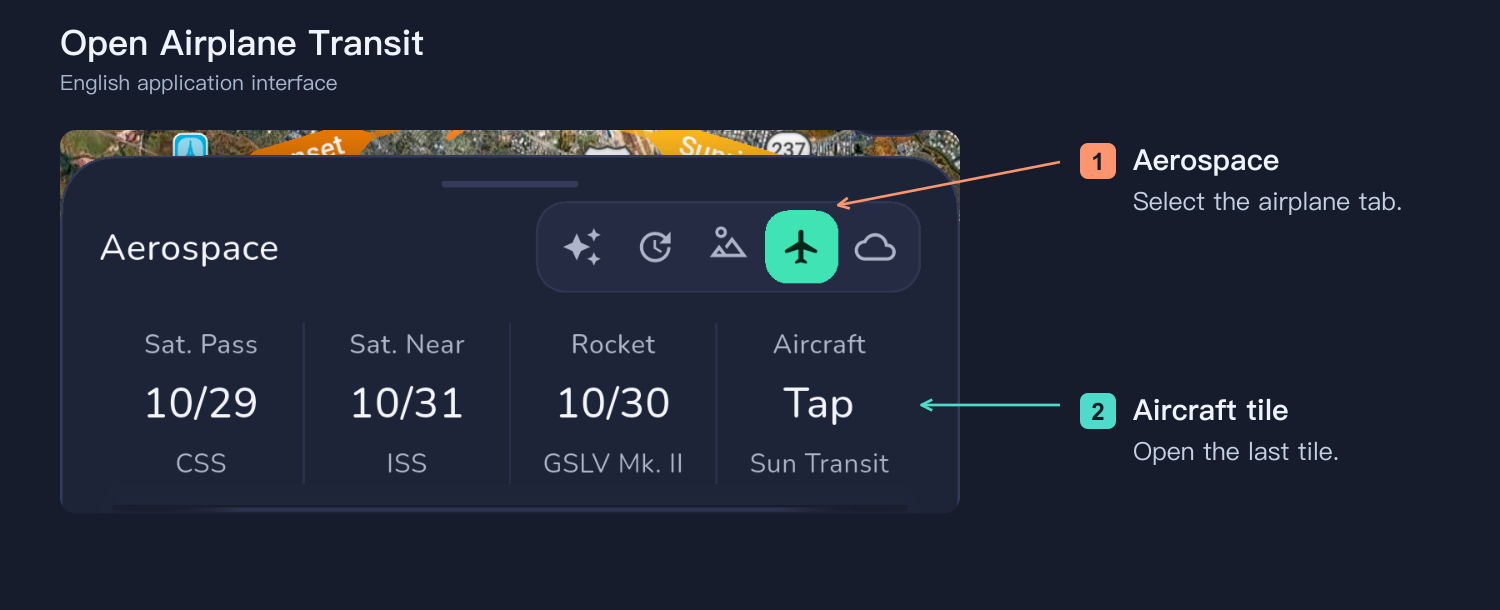
Expand the date/time panel below the map, select Aerospace, then open the last Aircraft tile. Place the camera pin at your actual shooting position: predictions use this pin, not your phone's location.
Choose a data source
Open the source settings and scan the sources. Compare response time, nearby aircraft count and geometric versus barometric altitude. Select the circle beside the desired source, then return and enable alerts. Scanning alone neither selects a source nor starts alerts. Check local coverage at globe.airplanes.live.
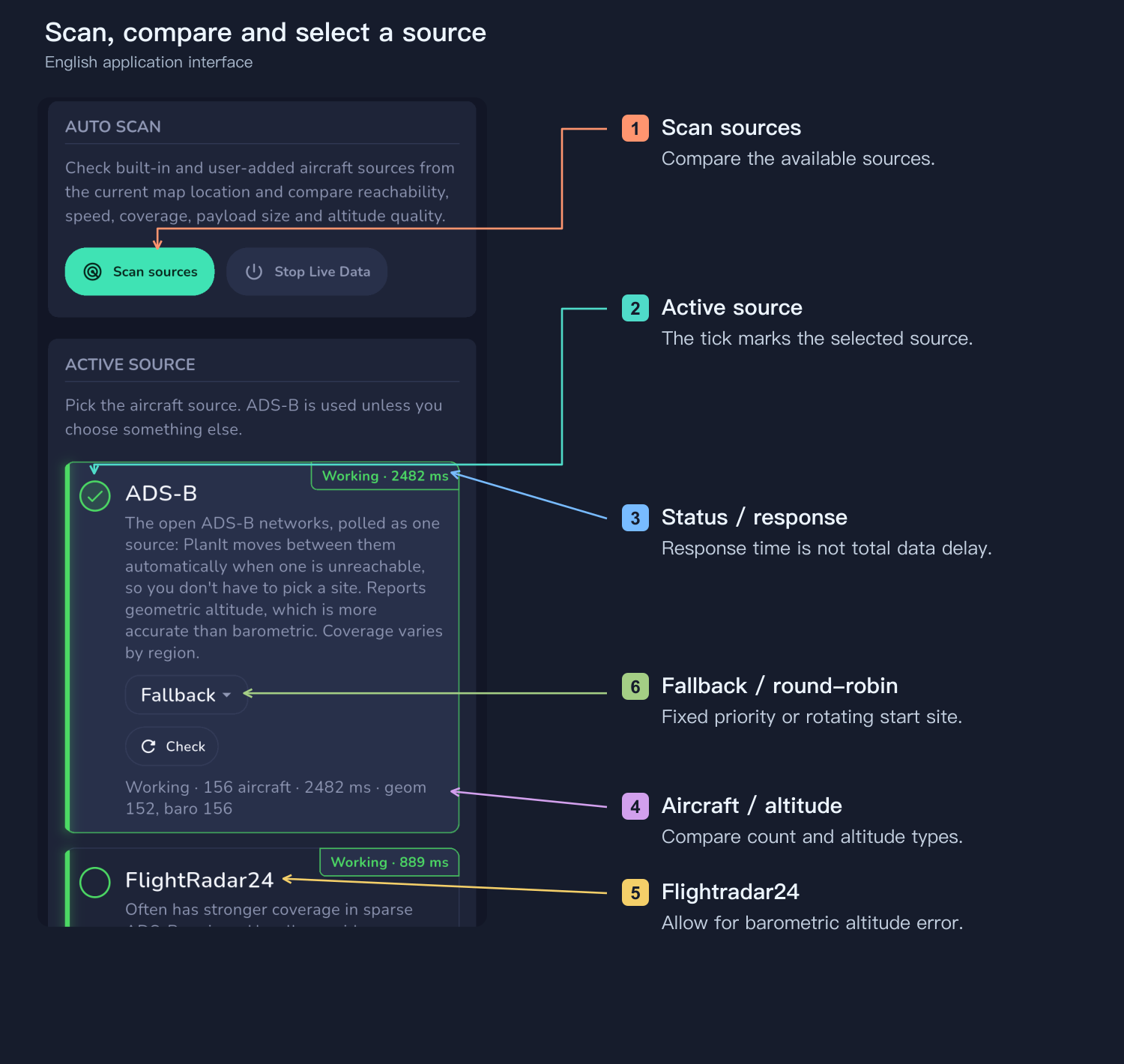
Fallback always starts with the same preferred website and tries another if it fails. Round-robin changes the starting website for each query to distribute requests; failures still fall through to other sites. These choices apply within the ADS-B group, do not alternate ADS-B with Flightradar24, and do not merge every site's aircraft.
Alerts and capture are separate
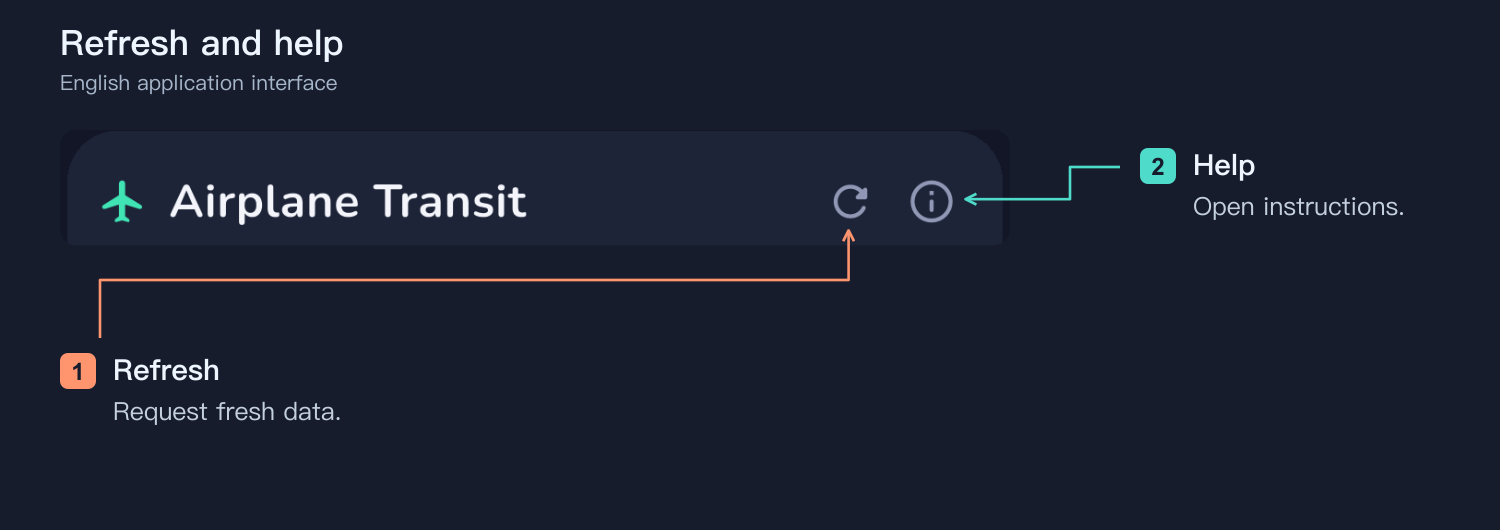
Alerts find opportunities; capture records images. You can enable alerts and press your camera's shutter yourself, or connect a camera and enable automatic capture. The remote-control icon in the title bar only opens the shooting panel. Refresh requests new data; the information icon opens help.
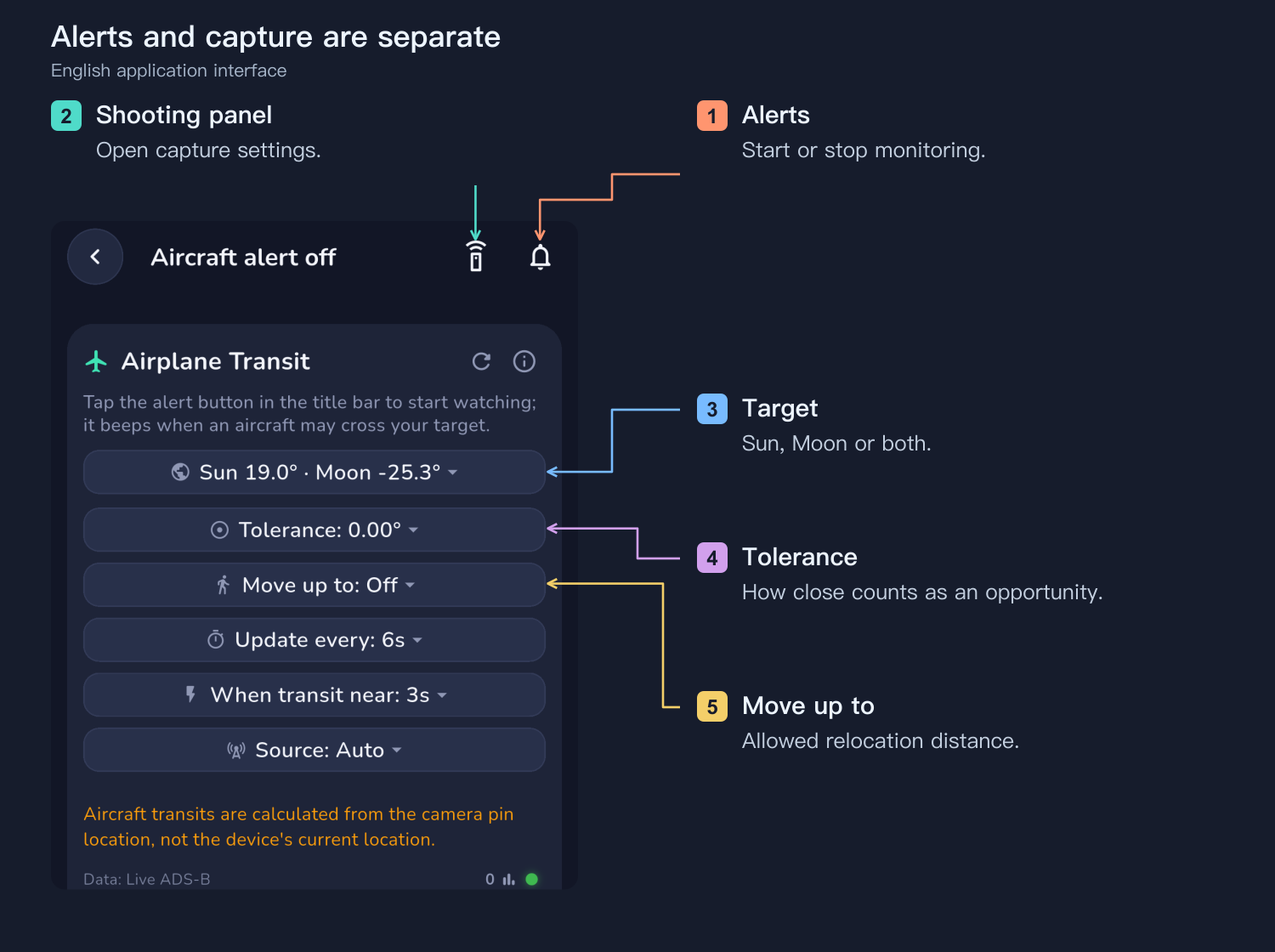
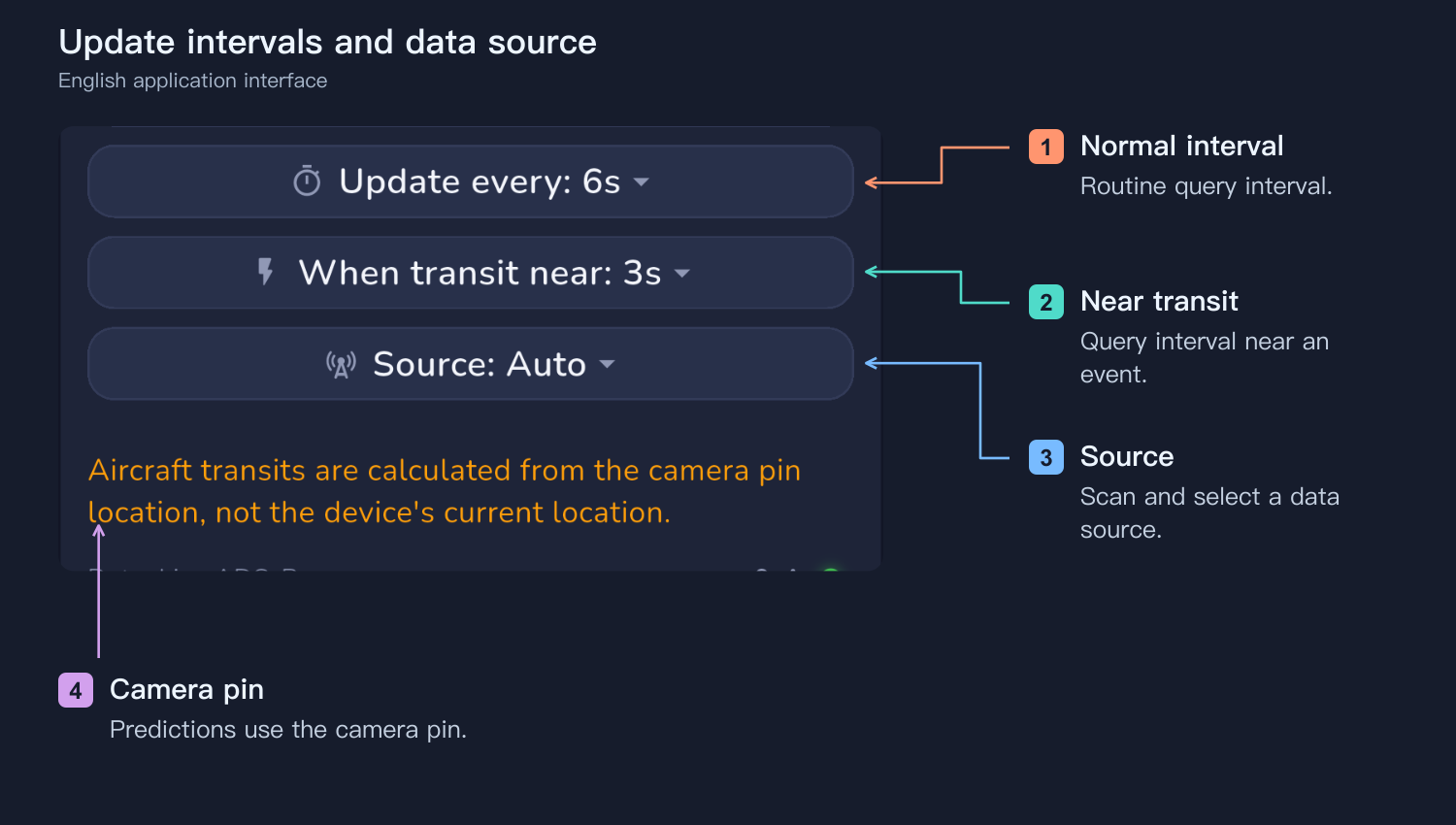
Choose the Sun, Moon or both for monitoring. Tolerance determines how close an aircraft must pass to merit an alert: a larger value also includes near misses, so check the track. A slightly larger tolerance can help with Flightradar24's barometric-altitude uncertainty. Movement range sets how far you can relocate; turn it off for a fixed setup. Normal and near-transit update intervals control query frequency, but cannot eliminate feed latency or provider limits.
Airplanes
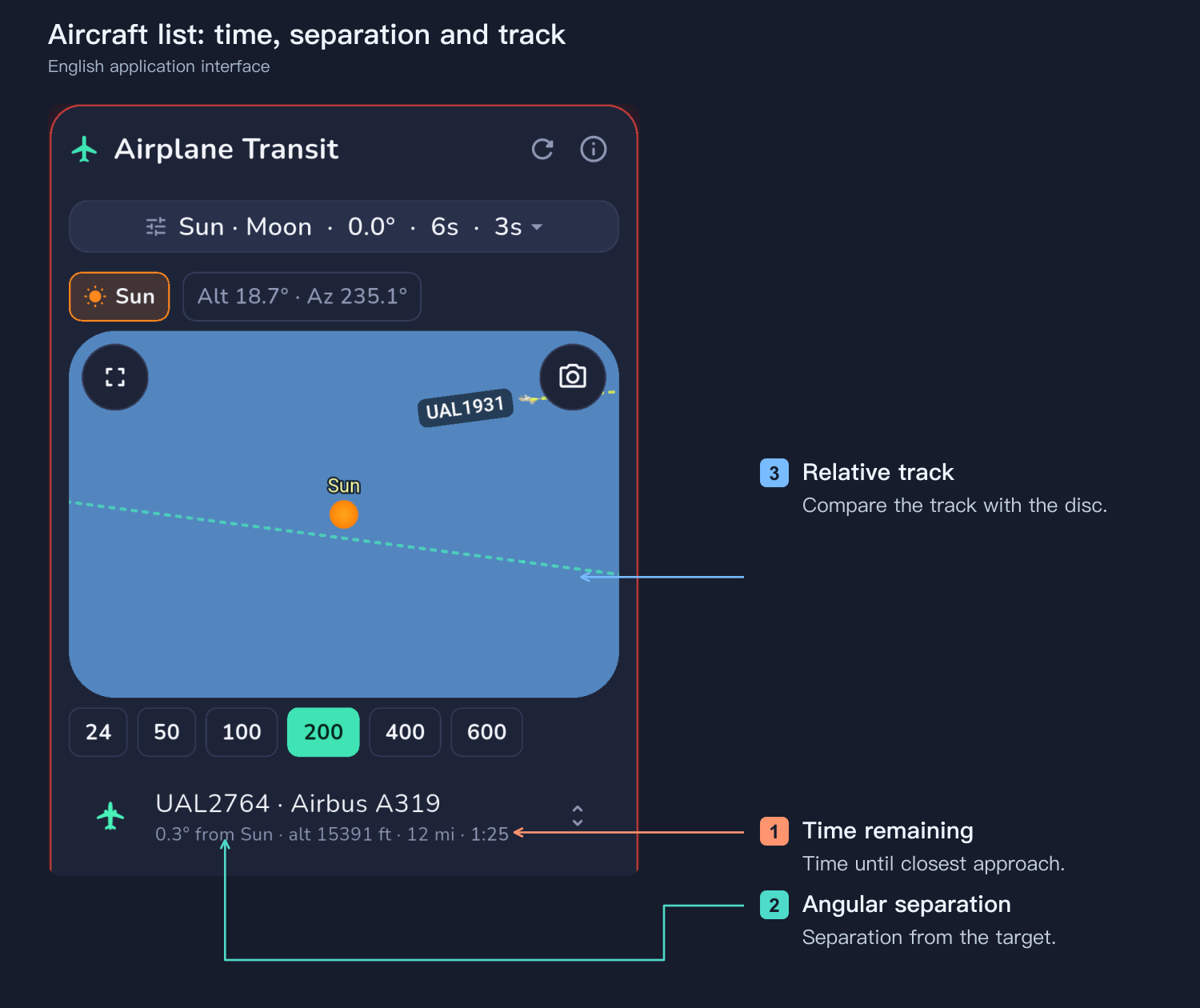
Usually the aircraft list is enough. Select an aircraft to see its track in the preview. Check time to closest approach, angular separation from the target and the track relative to the disc. A countdown does not guarantee a transit. Predictions change as new data arrive; expand details only when needed.
The shooting panels
Camera
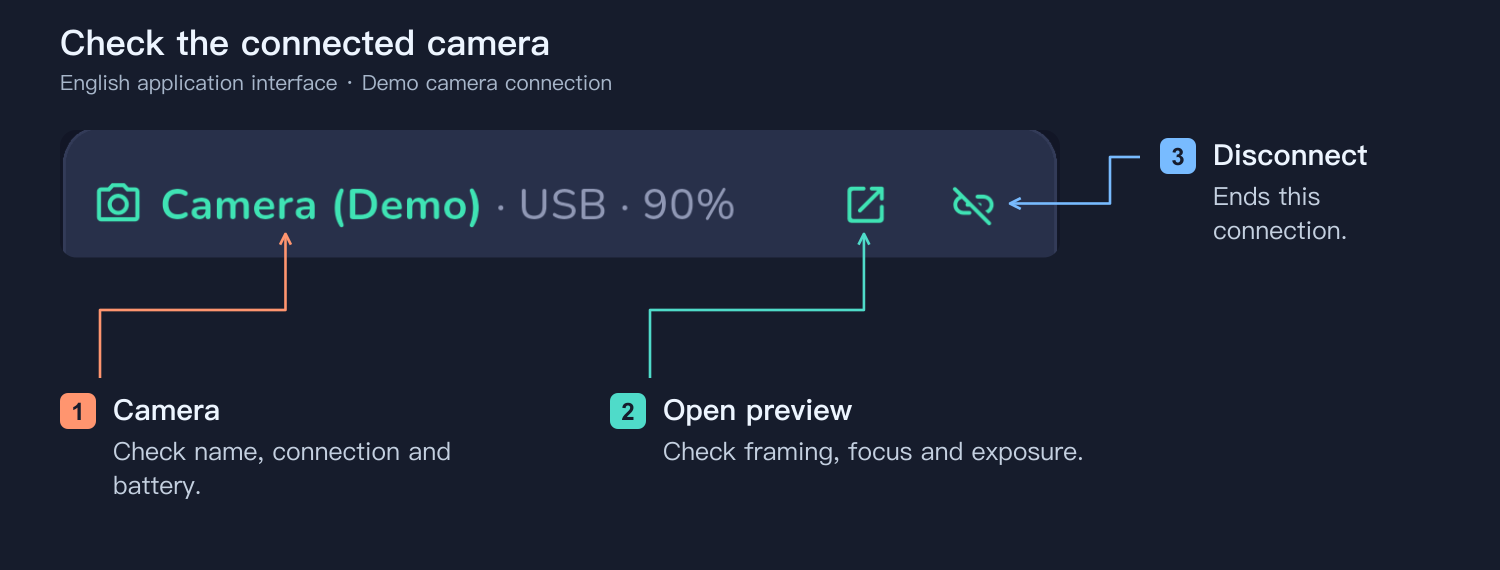
Confirm the selected camera, connection and battery, then open live view to check framing, focus and exposure. Capture history lists triggers; inspect the actual files to confirm success.
Auto Shoot
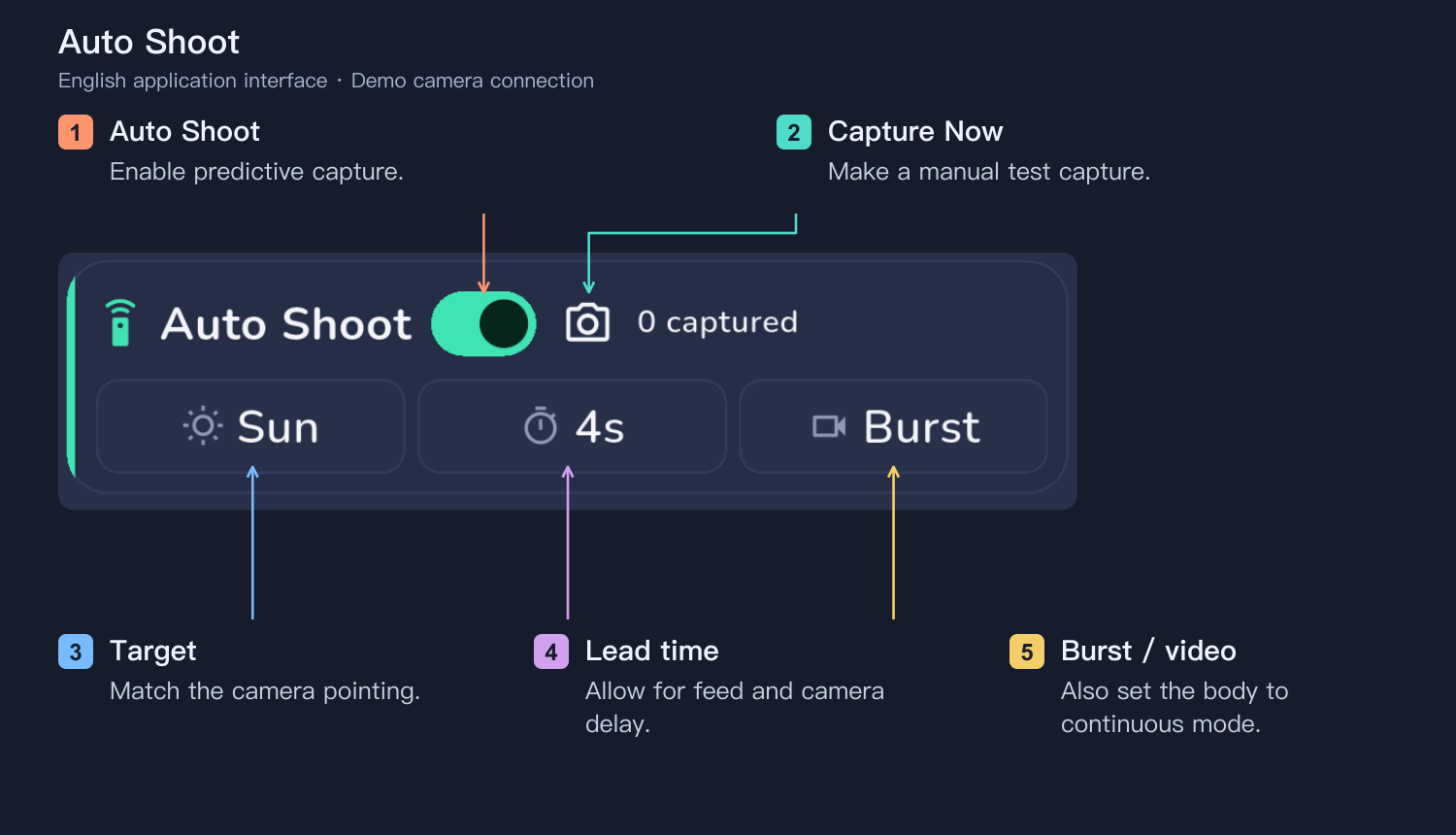
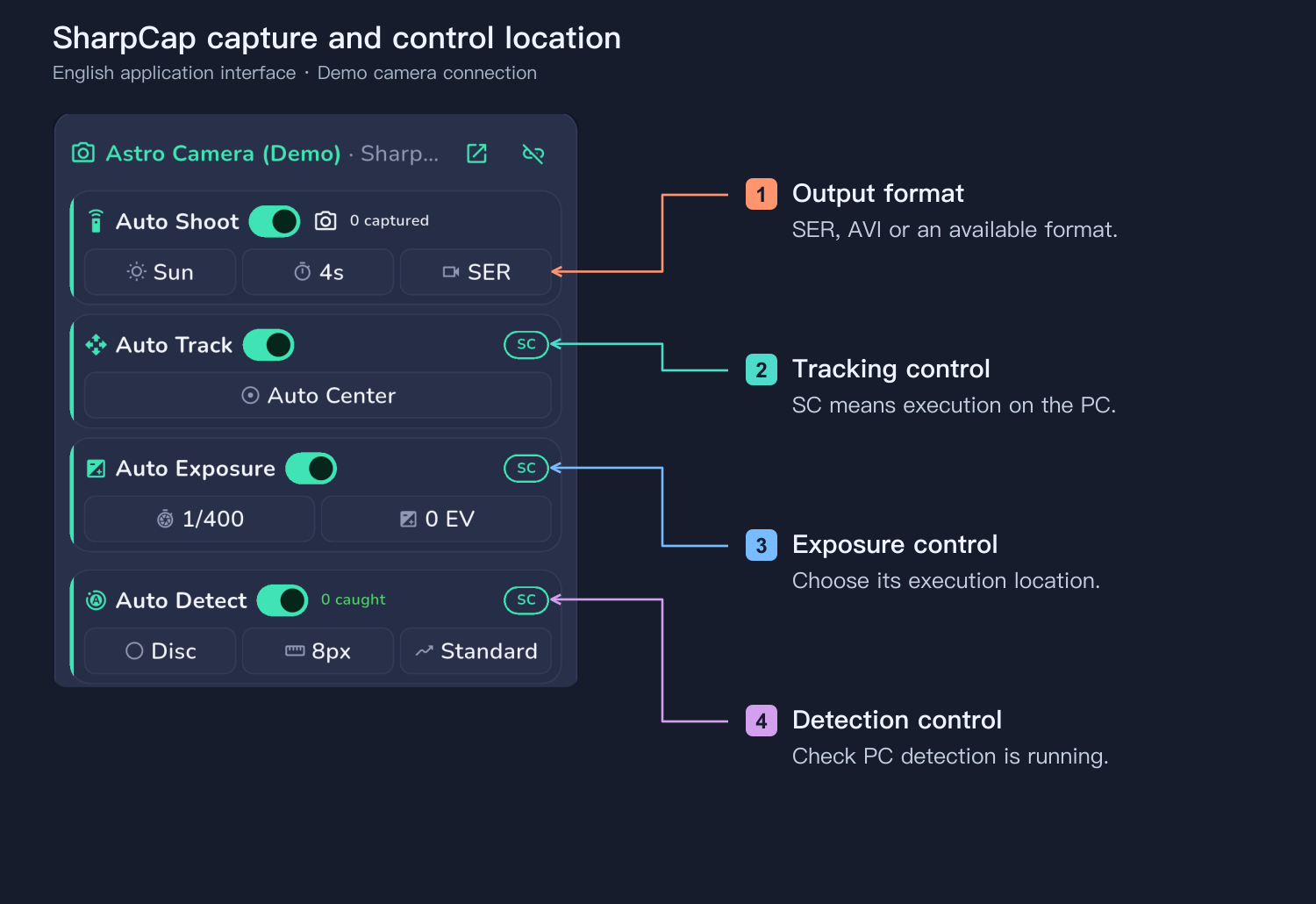
In Auto Shoot, match the target to where the camera points. Choose burst or video; a normal camera must also be in continuous shooting mode for bursts. SharpCap offers formats such as SER. Set the lead time, test with Capture Now and verify start, stop and saving before enabling automation. Automatic capture considers all opportunities for the chosen target, not just the selected aircraft.
Auto Exposure
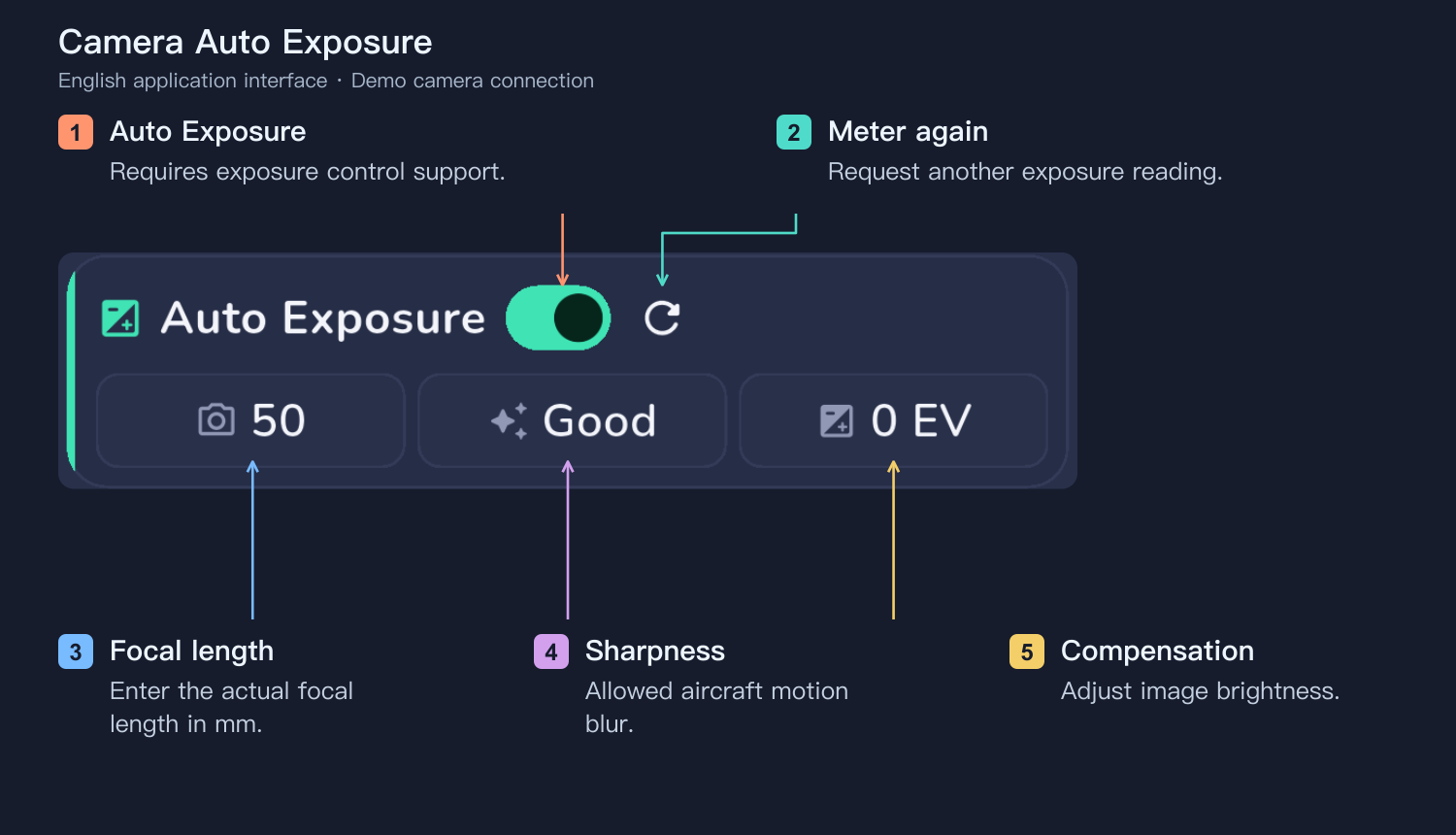
Auto Exposure uses target brightness and predicted aircraft motion. Enter the actual focal length and check solar-filter, shutter, ISO and aperture limits in camera settings. Sharpness controls allowed motion blur; compensation adjusts brightness. If light is insufficient or shutter time remains too long, check the live image and adjust the available ISO or setup.
Auto Detect
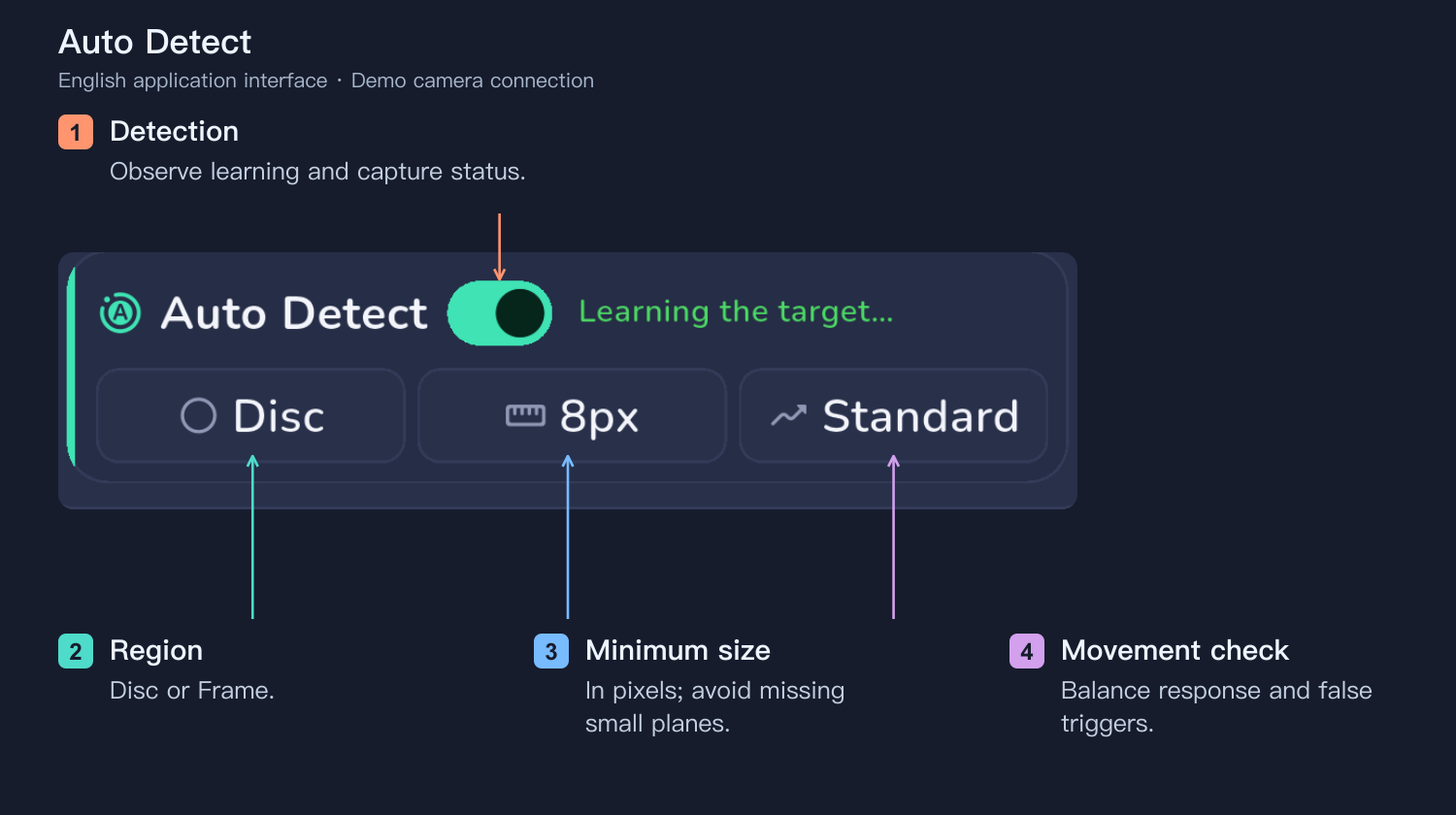
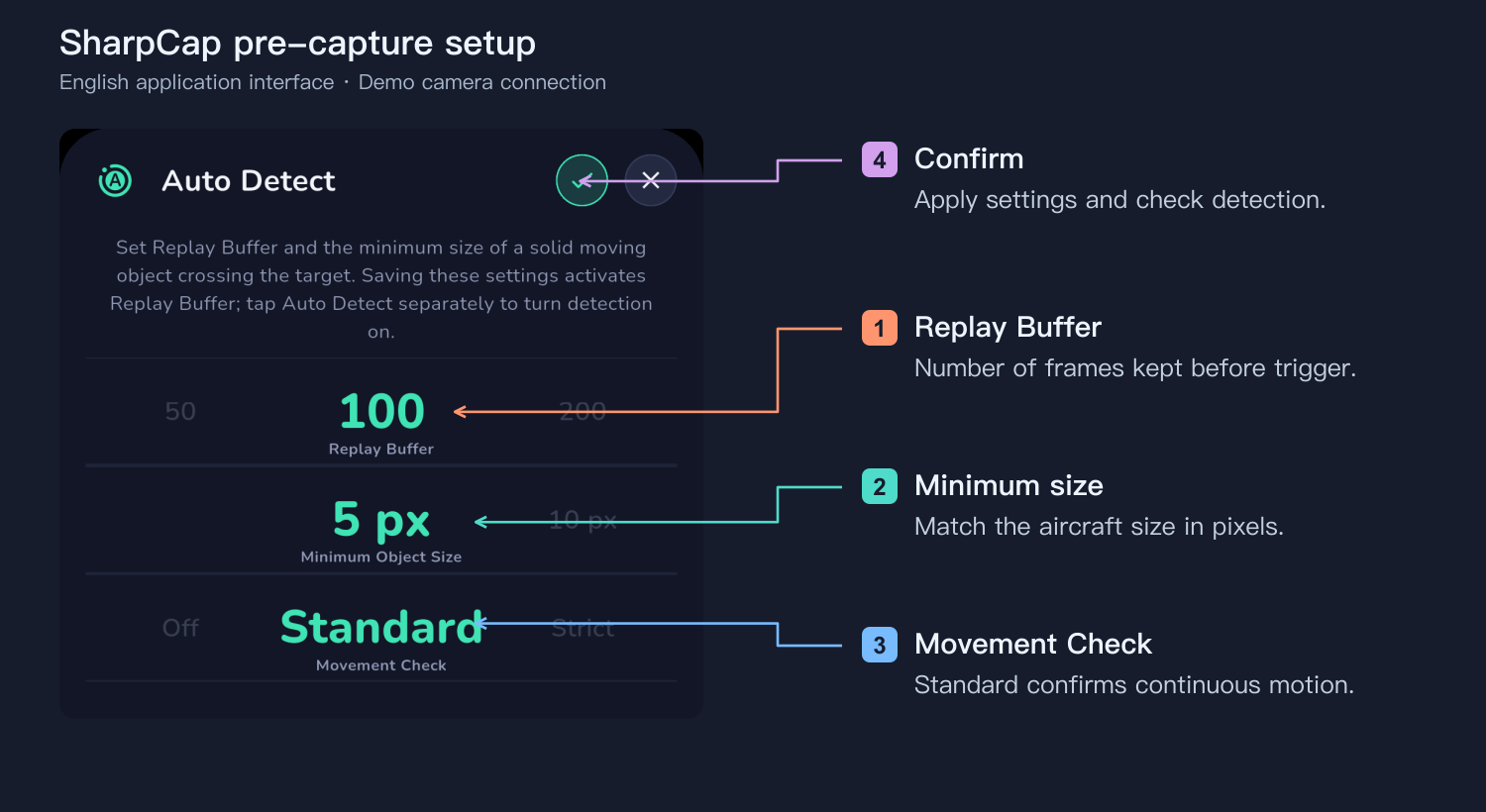
Auto Detect analyses the live image independently of flight feeds. Disc detects objects across the disc; Frame can also find aircraft outside it when the target is in frame and the sky is bright enough. Too large a minimum object size misses small aircraft; too small increases false triggers. Start motion confirmation at Standard: Off reacts faster but may trigger on dust or clouds; Strict may miss fast crossings. Normal cameras have no replay buffer, so detection starts capture only after the event begins. Slow previews or shutter lag can miss the transit; predictive early capture helps.
Auto Track
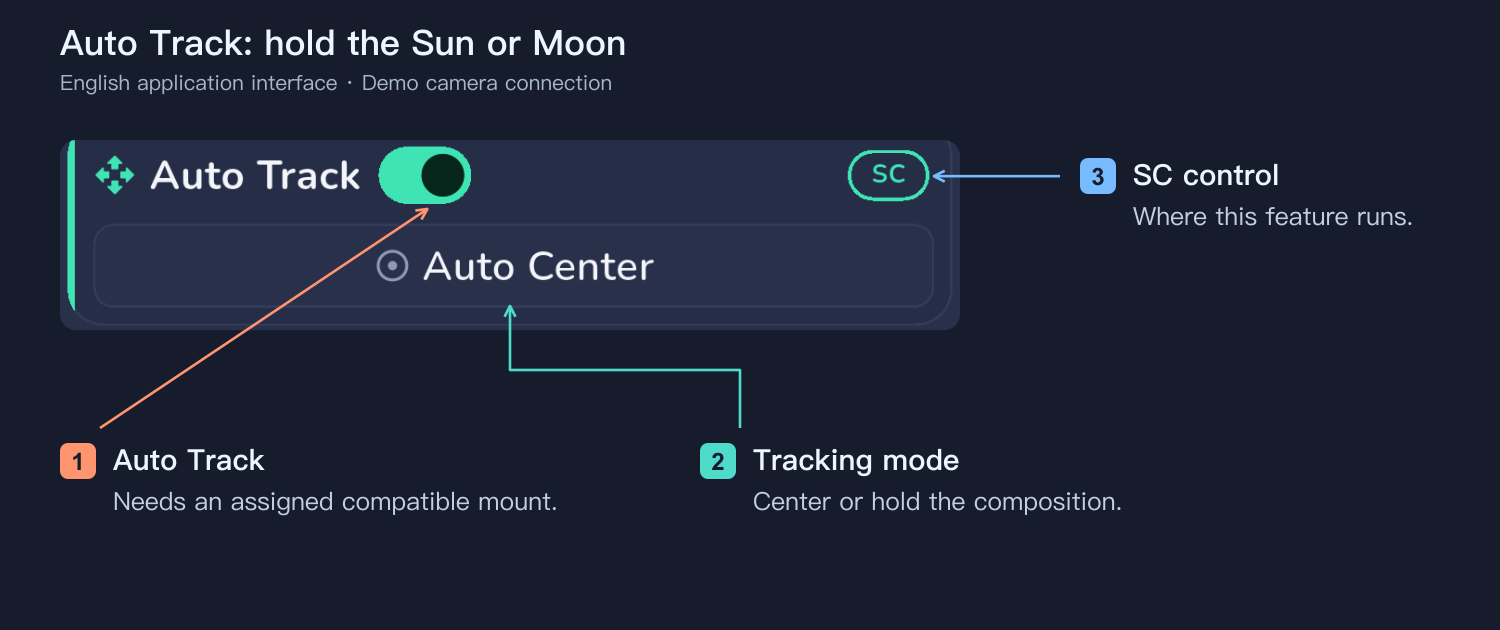
Auto Tracking needs a connected, assigned compatible mount. Choose automatic centering or hold the current composition. Track the Sun or Moon, not the airplane. The camera must be on the telescope and mount being controlled.
Photographing the Sun
Fit a suitable dedicated solar filter securely before aiming, focusing and setting exposure. With a solar filter, the surrounding sky is usually dark, so use Disc detection. Use short exposures: high video frame rates do not replace a short shutter time. Check burst mode, buffer, card speed and free storage.
Photographing the Moon
Change both monitoring and capture targets to the Moon, remove the solar filter and reset exposure for the phase and conditions. Preserve lunar detail while freezing aircraft motion. In daylight, Frame may detect an approaching aircraft before it reaches the Moon. At night, use Disc because aircraft outside the lunar disc may be invisible. Thin crescents, clouds and low altitude reduce available light.
H-alpha telescopes, astronomy cameras and SharpCap
Keep the telescope's complete manufacturer-specified solar system, including its blocking filter. Connect the astronomy camera to SharpCap on Windows. PlanIt Earth connects through PlanIt Bridge for predictive capture and direct image detection. The bridge requires SharpCap Pro.
In the camera connection page choose SharpCap on a Computer and save the bridge files. Put PlanIt.SharpCap.Bridge.py and PlanIt.SharpCap.Detect.dll in the same PC folder without renaming them. Add PlanIt.SharpCap.Bridge.py under SharpCap Settings → Startup Scripts, restart SharpCap and open the camera.
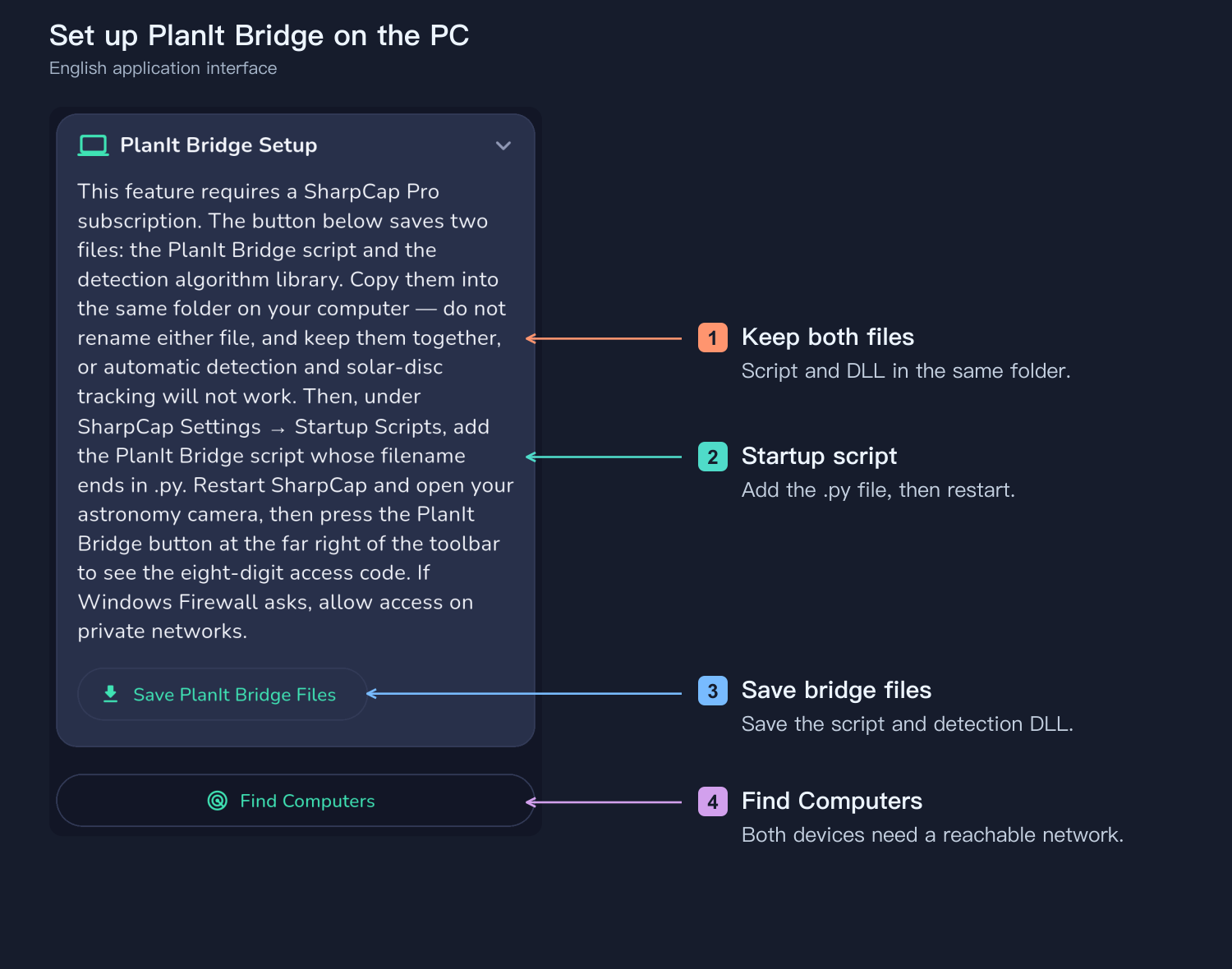
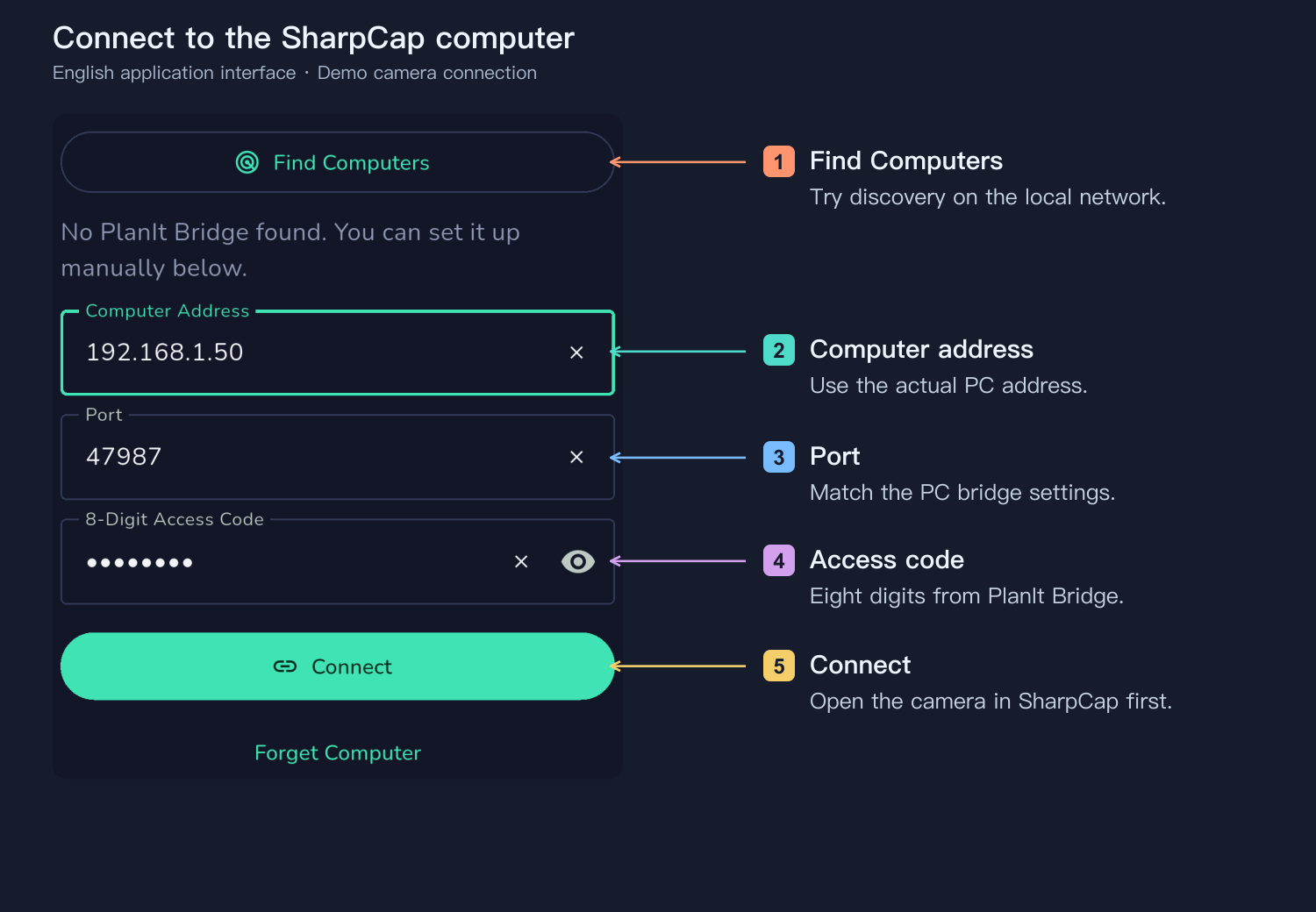
Click PlanIt Bridge in SharpCap's toolbar to see the eight-digit access code. Put both devices on a reachable network, find the computer or enter its address, port and code; allow private-network access if Windows Firewall asks. Check the camera name, preview and output format, then make a test capture. Update the script and DLL together.
Pre-capture with the replay buffer
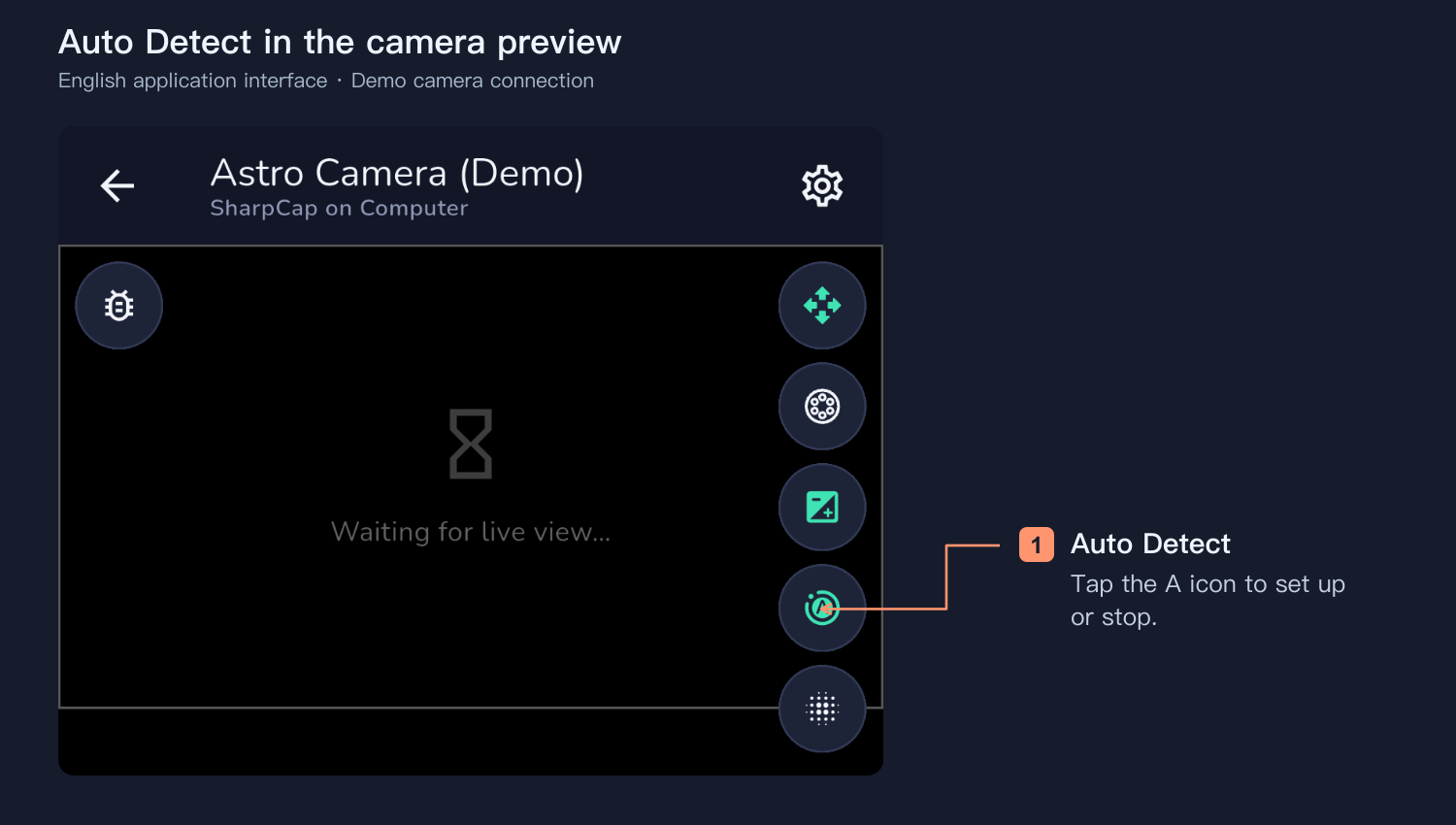
Open the camera preview and tap the A-shaped Auto Detect icon on the right toolbar. When detection is off, it opens setup; tap again while running to stop. Configure transit detection and verify it is running after confirming the settings.
The replay buffer keeps frames from before detection, so a trigger after the aircraft enters the disc can still save the earlier crossing. Buffer length is in frames: 100 frames mean about one second at 100 fps or five seconds at 20 fps, not a universal recommendation. Actual capacity depends on frame size, ROI and memory. Adjust minimum size and motion confirmation after observing several events. A smaller ROI can extend the buffer but must allow for drift. Use Transit, not the separate Flare mode.
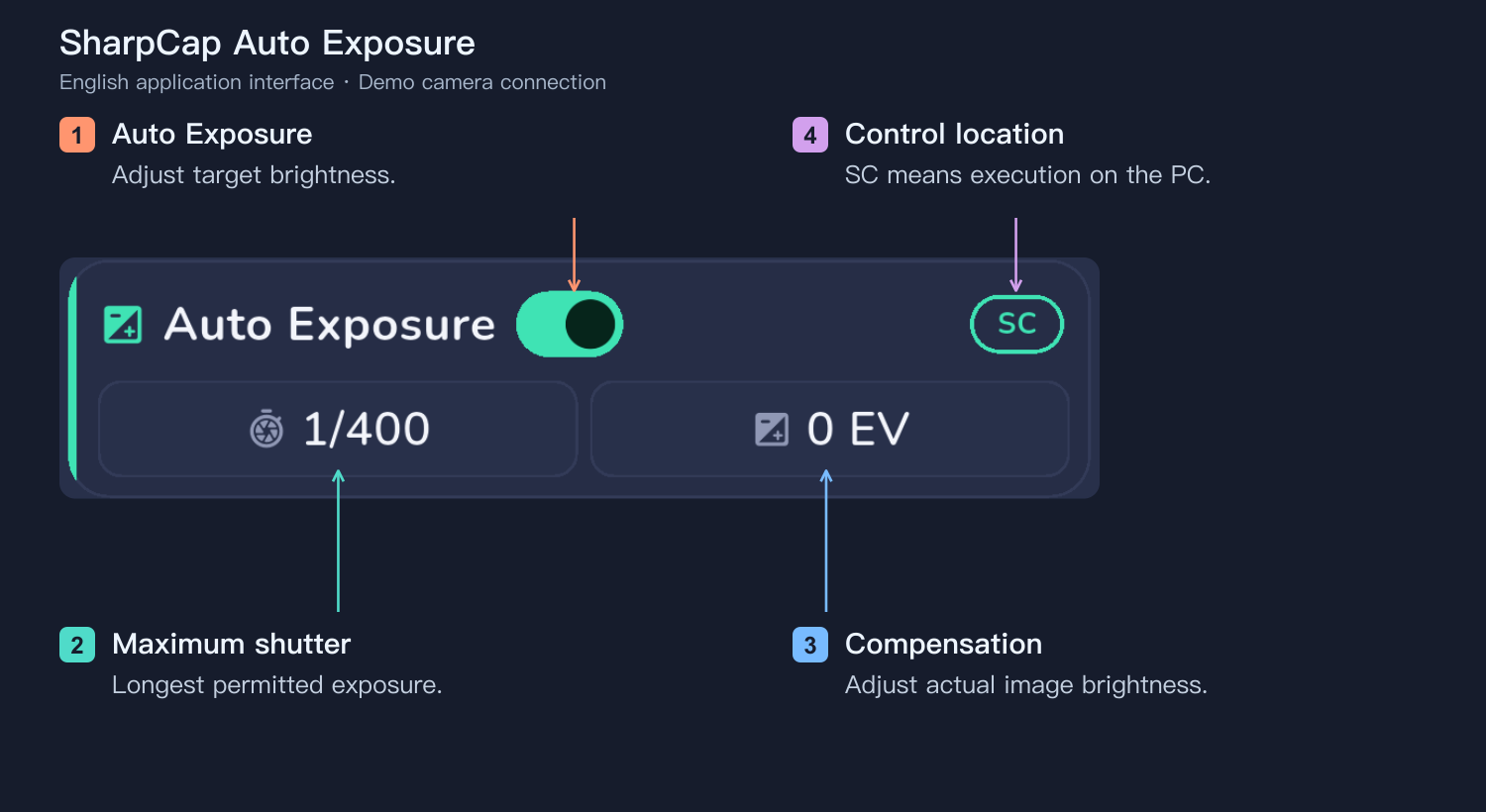
The SC badge shows or selects where tracking, exposure and detection run. After PC-side detection starts successfully, it can keep running while the phone disconnects, provided SharpCap, camera and PC remain active. App-side automation needs the app running and connected. Flight-prediction capture still needs PlanIt Earth receiving live flight data. The PC exposure panel sets maximum shutter time and compensation.
For H-alpha tuning, fix exposure and gain and finish focusing before using the tuning assistant to compare line centre, brightness and uniformity. Scan Video After Capture can detect objects in PlanIt-triggered recordings, save surrounding frames as SER and show results in capture history.
Build and share an ADS-B receiver
For a permanent site, you can build a receiver and feed a flight-tracking platform. FlightAware PiAware and Flightradar24 Pi24 provide official setup guides. Choose a compatible 1090 MHz USB receiver, antenna, Raspberry Pi or supported computer, storage and reliable power/network. Give the antenna a clear view of the sky.
Follow the platform's image/install guide, configure network and receiver coordinates, create or sign in to the platform account, then claim or activate the receiver and enable feeding. Verify that aircraft update locally and the platform reports received data. Sharing with FlightAware does not mean PlanIt Earth automatically uses a FlightAware account; choose and test a supported source in the app separately.
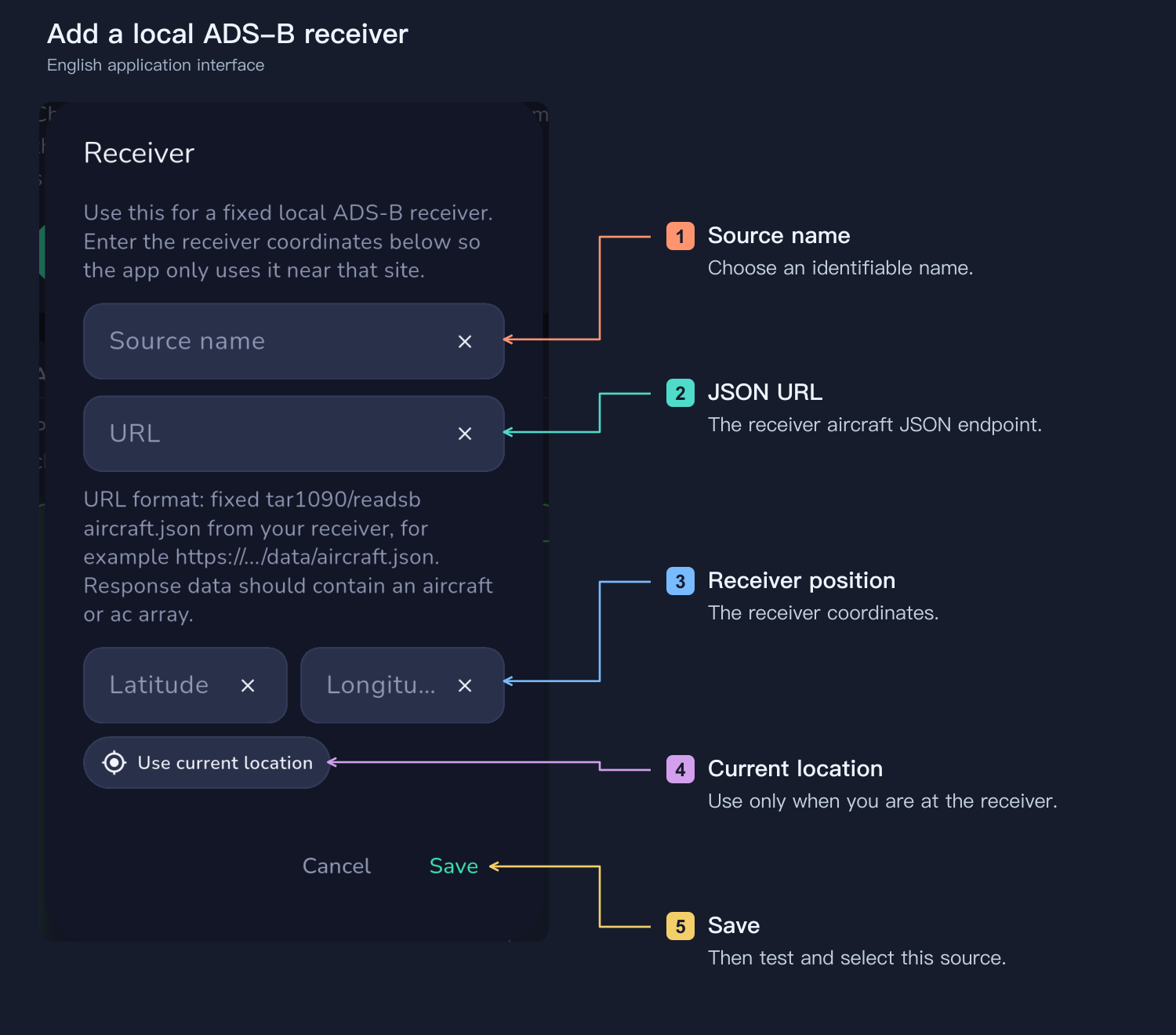
You can also add the receiver's local aircraft JSON URL in PlanIt Earth's source settings. Enter a name, the actual JSON endpoint and the receiver's own coordinates, save, test and select it. A webpage URL is not the JSON URL. Keep local access working if you also feed a server; platform upload alone does not guarantee accurate altitude or timely transit predictions.
Calibrate timing before leaving it automated
Observe several real captures first. Compare the predicted countdown with the aircraft in the images, check that recording starts early enough and retains the full crossing. If aircraft repeatedly arrive about two seconds before the prediction, increase lead time and allow for camera response; this is an example, not a fixed setting. Turns, altitude error and feed/network delay all affect timing. Verify replay-buffer duration with SharpCap; normal cameras need early burst/video capture. Recheck after changing camera, network or source. Once several events are captured fully and the system is stable, let it run automatically with adequate tracking, power and storage.
Android background alerts may be affected by battery saving. Keep flight alerts in the foreground on iPhone and HarmonyOS. App-side camera control needs a live connection and the app running; PC-side detection follows the displayed execution status.